Whether you’re a brand-new blogger or already gaining traction, great design can make or break your blog. In the crowded blogging space, visuals are your first impression. The good news? You don’t need to hire a designer or master Photoshop. Canva—a free, drag-and-drop design tool—makes it incredibly easy for bloggers to create professional visuals.
In this post, you’ll discover the best Canva tips for bloggers, from choosing the right templates to designing stunning pins, blog headers, and social media graphics that elevate your brand.
Let’s dive in!
Why Bloggers Should Use Canva
Canva is one of the most beginner-friendly design tools available. With thousands of free templates and a drag-and-drop interface, even total non-designers can create:
- Blog featured images
- Pinterest pins
- Instagram graphics
- YouTube thumbnails
- eBooks & lead magnets
- Logos and brand kits
Top reasons bloggers love Canva:
- Easy to use
- Free version is powerful
- Tons of templates
- Cloud-based (access anywhere)
- Time-saving
How to Get Started with Canva as a Blogger
1. Create a Free Canva Account
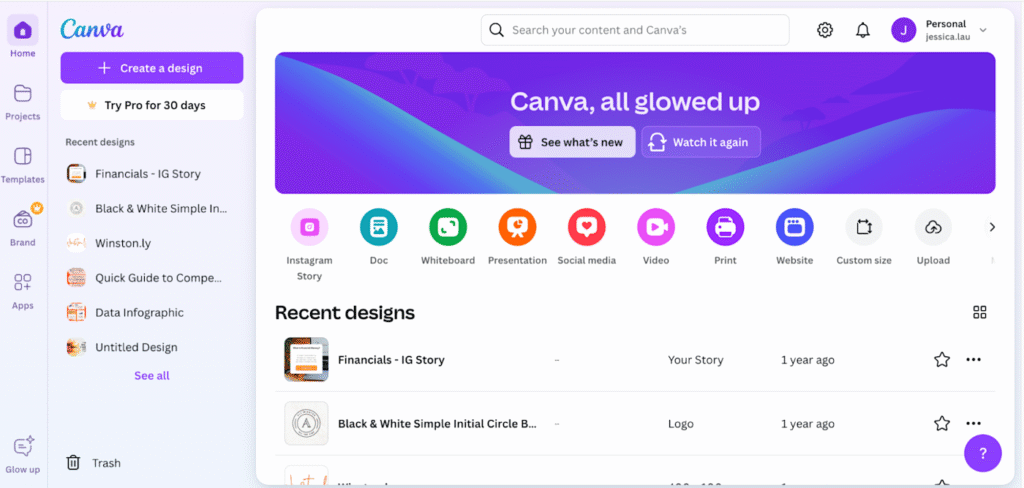
Go to canva.com and sign up for a free account. You can also try Canva Pro (free for 30 days) to unlock premium features like:
- Magic Resize
- Background remover
- Brand Kit
- Premium templates
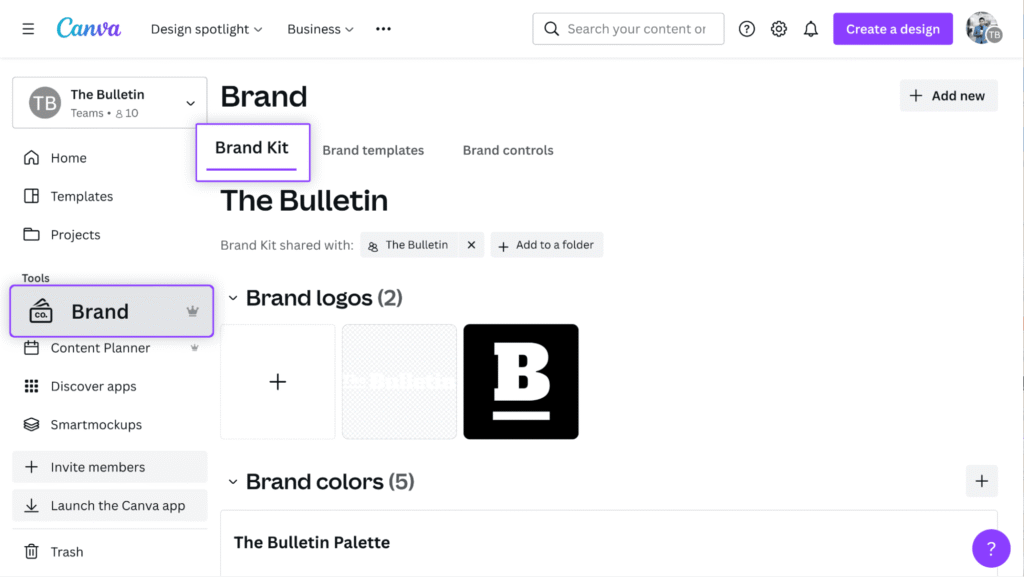
2. Set Up Your Brand Kit (Pro feature)
Your Brand Kit includes your:
- Logo
- Brand colors
- Brand fonts
This ensures visual consistency across all your graphics.
Canva Tips Every Blogger Should Know
Let’s break down the best Canva tips into categories that matter most to bloggers:
✅ Blog Graphics That Convert
Your blog’s featured image is what appears on social media previews, so make it eye-catching and on-brand.
Tip #1: Use a 1200×628 px size for featured images
This size works best for Facebook and Twitter.
Tip #2: Stick to consistent fonts and color themes
Match your blog brand colors so every image feels connected to your site.
Tip #3: Use contrast wisely
Make your text pop by using a dark overlay behind white fonts or vice versa.
Tip #4: Group and align elements
Use the Position tool to center, align, or space elements evenly.

✅ Pinterest Pins That Drive Traffic
Pinterest is gold for blog traffic. And Canva is a Pinterest pin creation powerhouse.
Tip #5: Use 1000×1500 px dimensions
This is the ideal aspect ratio (2:3) for Pinterest.
Tip #6: Create a set of 3–5 pin variations per blog post
Change up the headline, image, or colors to test which performs best.
Tip #7: Use keywords in pin titles
Add searchable phrases like “blogging tips” or “how to grow a blog”.
Tip #8: Highlight benefits with bold text
Make the value instantly clear. (Ex: “10 Canva Tips to Save Time”)
✅ Social Media Graphics for Promotion
Whether it’s Instagram, Facebook, or Threads, Canva has perfectly sized templates for every platform.
Tip #9: Use Canva’s Social Media Kit Templates
Find them under “Templates > Social Media” to customize quickly.
Tip #10: Use elements and frames to highlight blog titles
Shapes, shadows, and icons can guide a viewer’s eye to your headline.
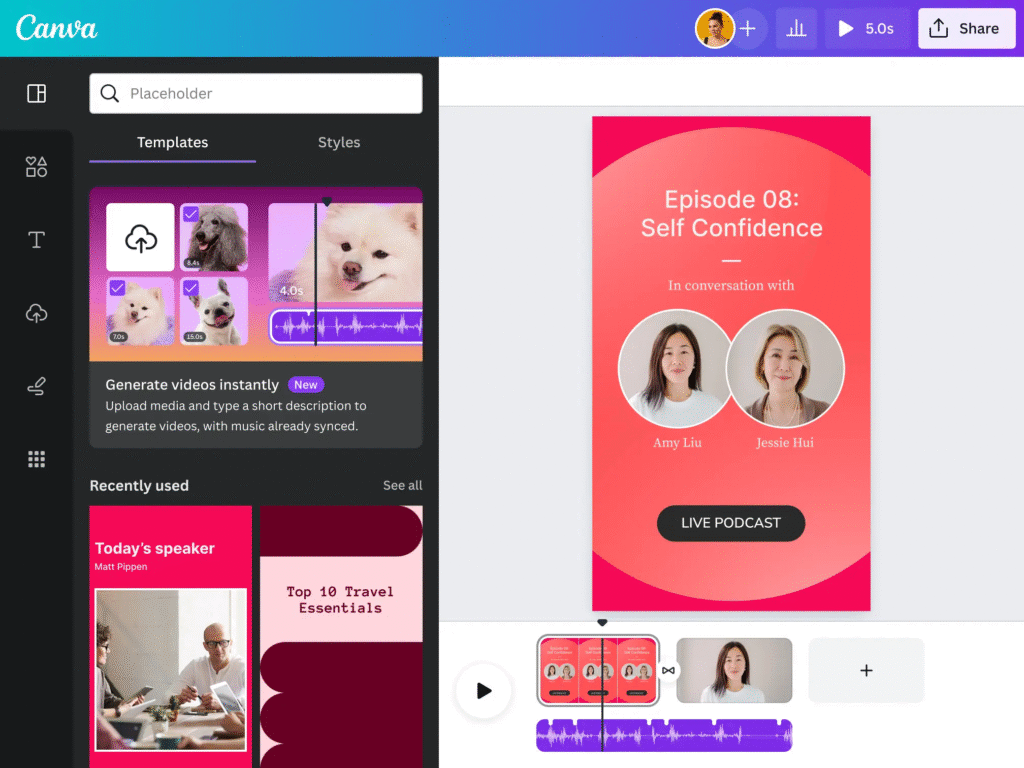
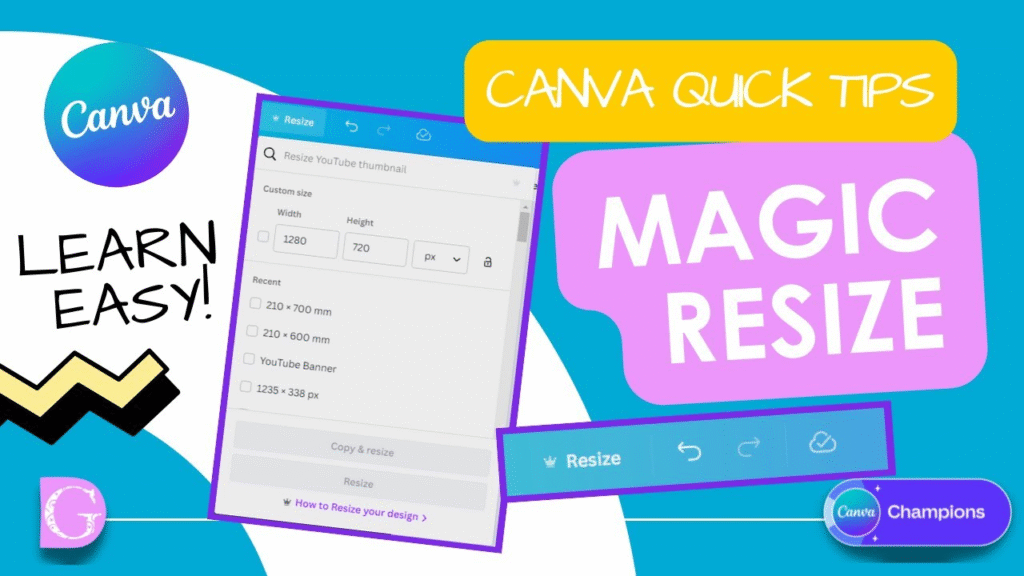
Tip #11: Use Magic Resize (Pro)
Instantly resize your blog graphic into Instagram or Facebook format.
✅ Design Tips for a Professional Look
Tip #12: Stick to 2–3 font styles max
Too many fonts = visual chaos. Keep it clean and readable.
Tip #13: Use white space
Don’t cram every corner. Let your designs breathe.
Tip #14: Use Canva Elements for icons & illustrations
Search terms like “blog icon,” “arrow,” or “hand-drawn frame” to enhance visuals.
Tip #15: Don’t stretch images
Use Crop or Position instead to maintain quality.
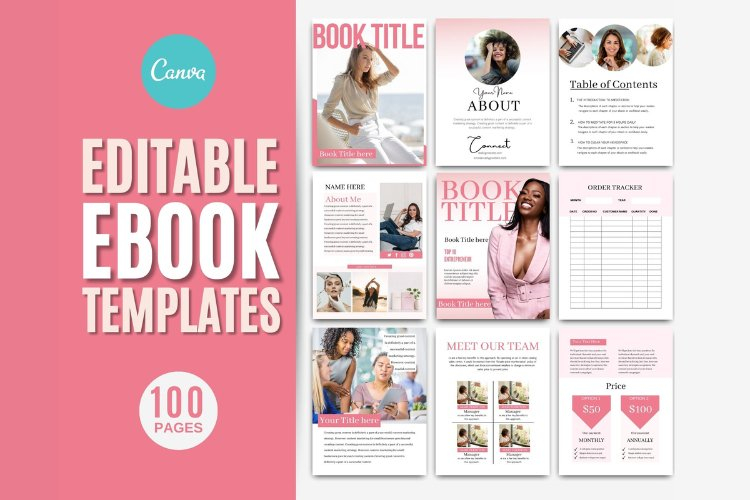
✅ Content Upgrades and eBooks
Canva is great for creating:
- Checklists
- eBooks
- Workbooks
- Lead magnets
Tip #16: Use A4 or Letter template sizes
Search “eBook” or “Workbook” in Canva templates.
Tip #17: Use consistent page layouts
Create one good layout and duplicate the page for speed.
Tip #18: Export as PDF for lead magnets
Choose “PDF Print” for high quality or “PDF Standard” for email opt-ins.
Time-Saving Canva Features for Bloggers
Here are some lesser-known Canva features that will help you save time:
Magic Resize
Instantly adjust your design to multiple formats (Pro only).
Background Remover
Click once to remove backgrounds from product or personal photos.
Content Planner
Schedule your social posts directly from Canva.
Canva Docs (New)
Great for drafting branded blog post summaries or opt-in lead magnets.
Recommended Canva Templates for Bloggers
Here are 5 types of templates you should bookmark in Canva:
- Pinterest Pin Templates
- Instagram Carousel Templates
- YouTube Thumbnail Templates
- eBook / Lead Magnet Templates
- Logo & Branding Templates
Common Mistakes to Avoid When Using Canva
Even though Canva is easy, beginners often make these mistakes:
- Using too many colors
- Using stretched images
- Overloading text
- Ignoring alignment
- Using low-quality photos
Stick to clean, simple, and brand-consistent designs.
Final Thoughts: Design Doesn’t Have to Be Hard
With these Canva tips, bloggers can create professional visuals in minutes—even with zero design background. Consistent, branded design builds credibility, trust, and blog traffic.
Remember: Design is not about perfection. It’s about clarity, consistency, and visual communication.
So open Canva, pick a template, and start designing like a pro—even if you’re just starting your blogging journey!
FAQ Section
No. The free version is powerful enough. However, Canva Pro gives access to premium templates, Magic Resize, and Brand Kit, which can speed up your design workflow.
Use 1200×628 px for blog featured images to ensure they look good on social media previews.